Interview practice, before it matters.
A lifelike interviewer asks, listens, and follows up in real time — then Callback scores your responses and identifies the specific points to address.
macOS · Apple Silicon & Intel · Free during the beta·macOS will not open it on first launch: the procedure
Other downloads
- macOS · Apple Silicon & IntelCallback.dmg
- macOS · Apple Silicon (M-series)Coming soon
- Windows · 64-bitComing soon
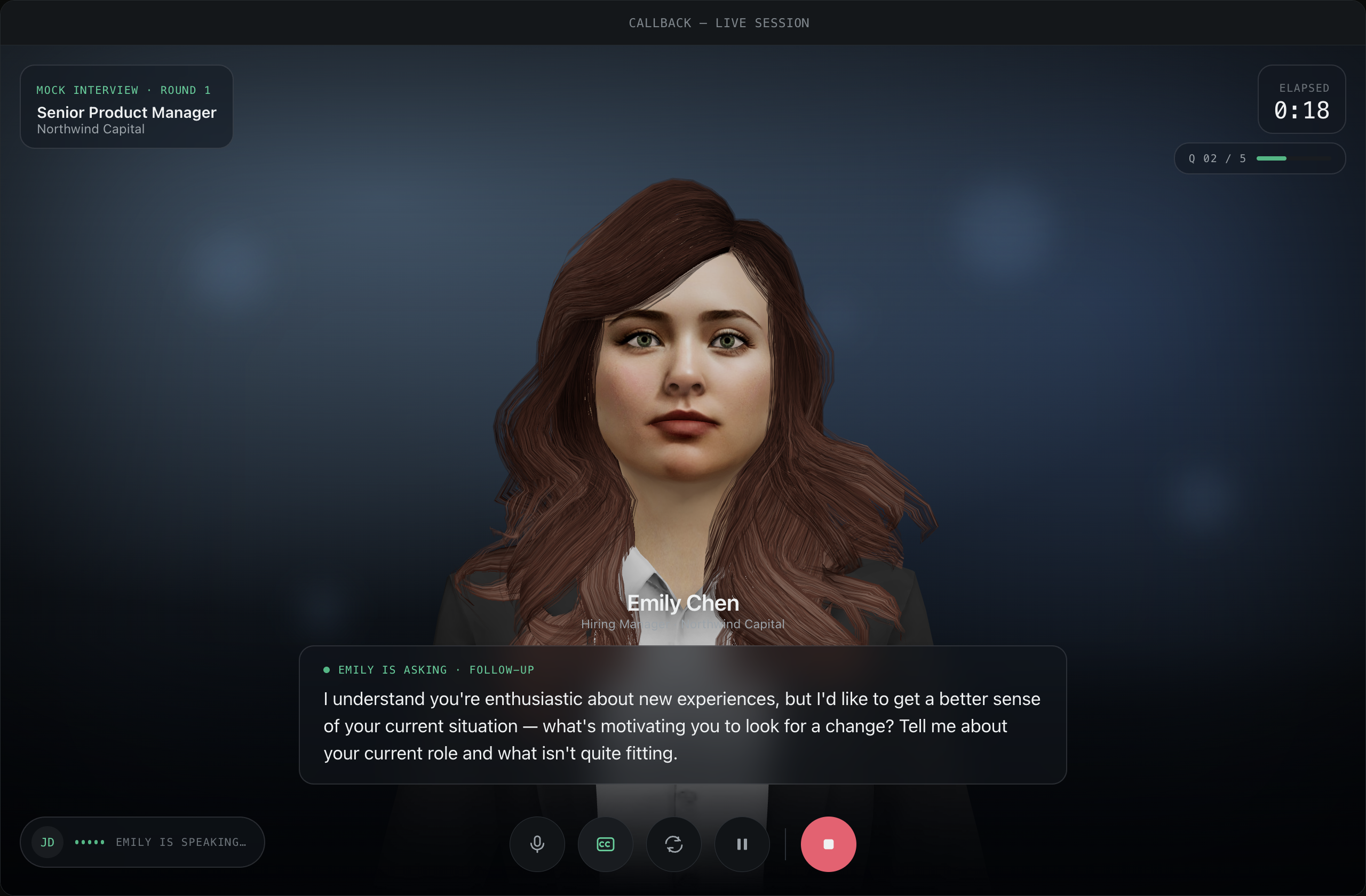
How a session works.
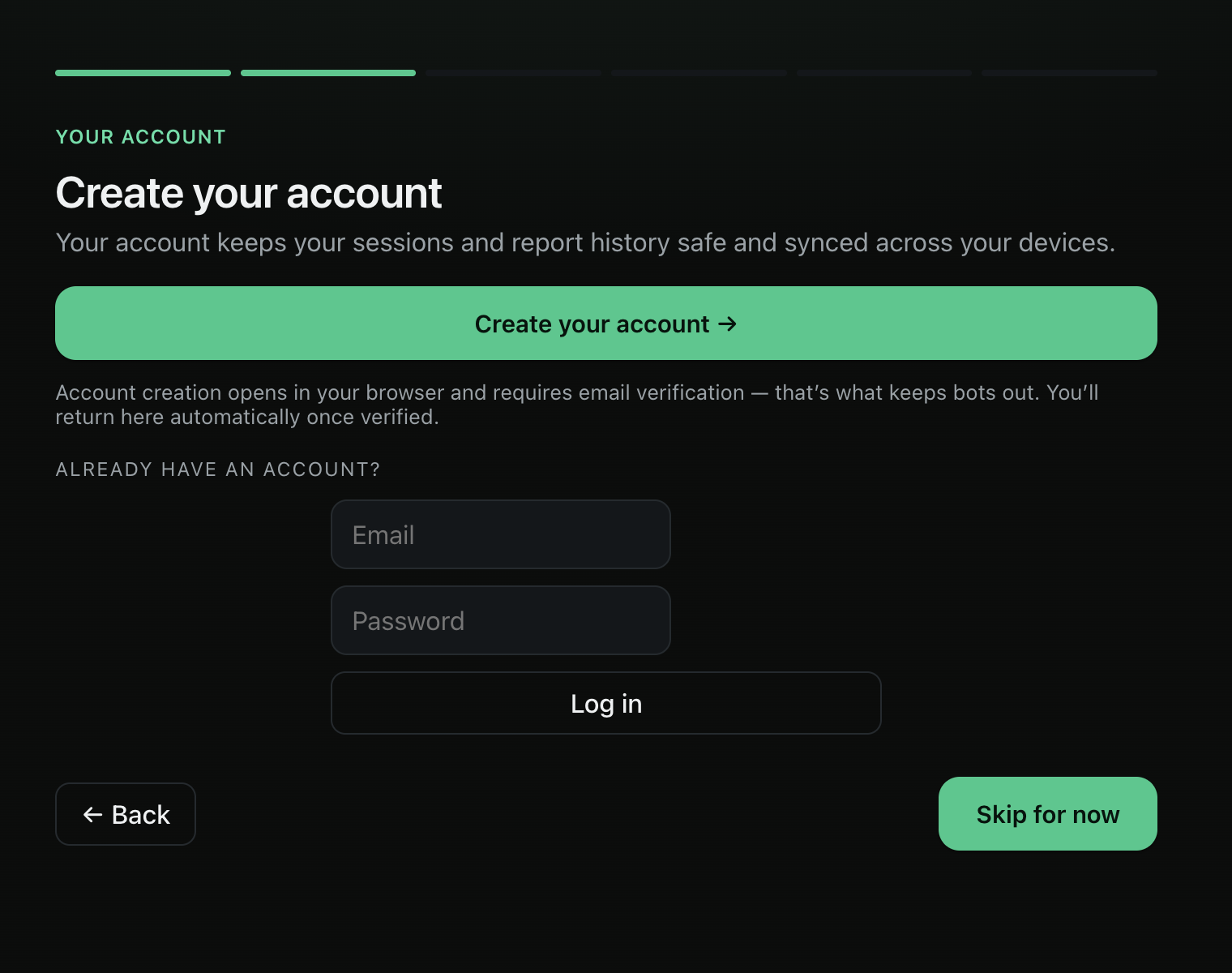
Set up your interview
Enter the role, the company and your résumé, then select the interview round and the level of difficulty.
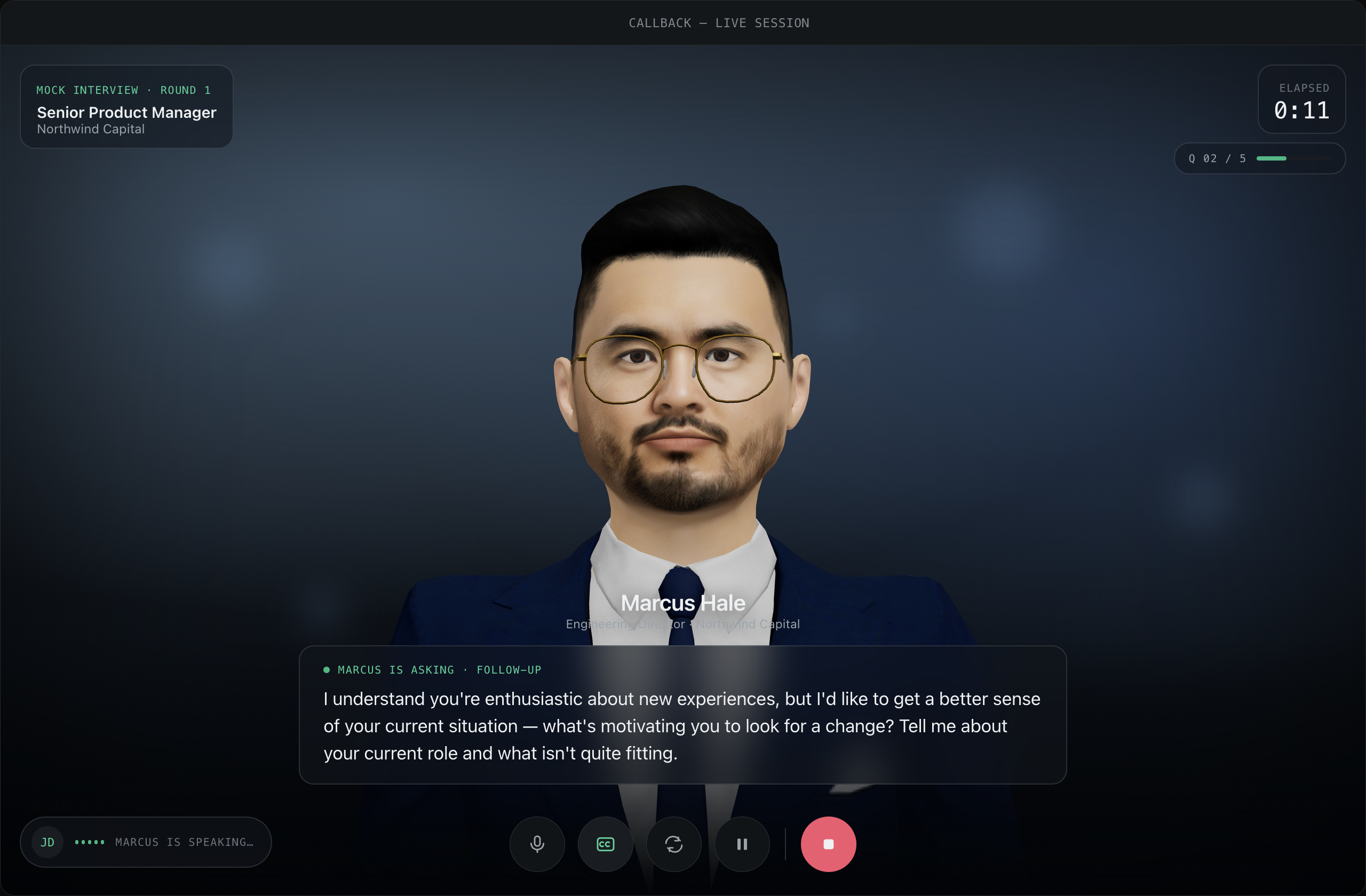
Conduct the interview
Speak with a real interviewer who listens, reacts, and follows up — out loud, in real time.
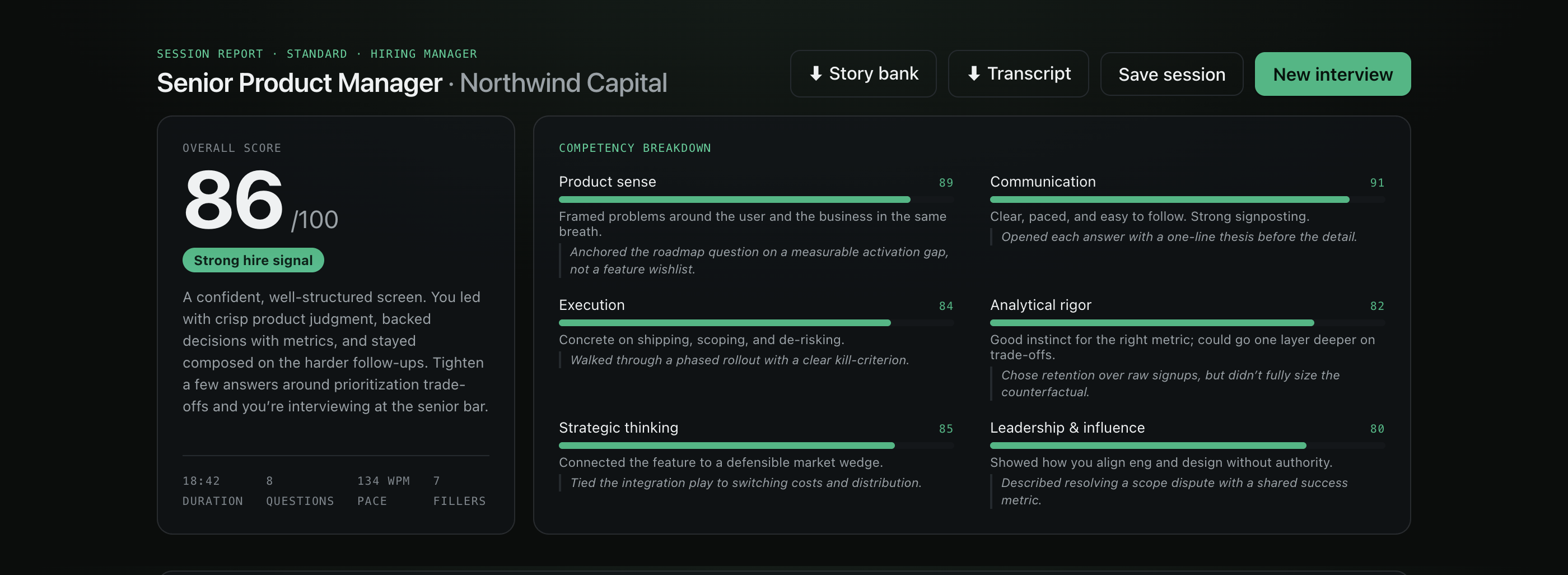
Receive your score and coaching
Receive a hire-readiness score, a per-skill breakdown, and a revised version of each of your answers.
A clear assessment of where you stand.
Every session ends with a hire-readiness score and a breakdown across the competencies interviewers assess — product sense, communication, rigor, leadership — each with a note on why.
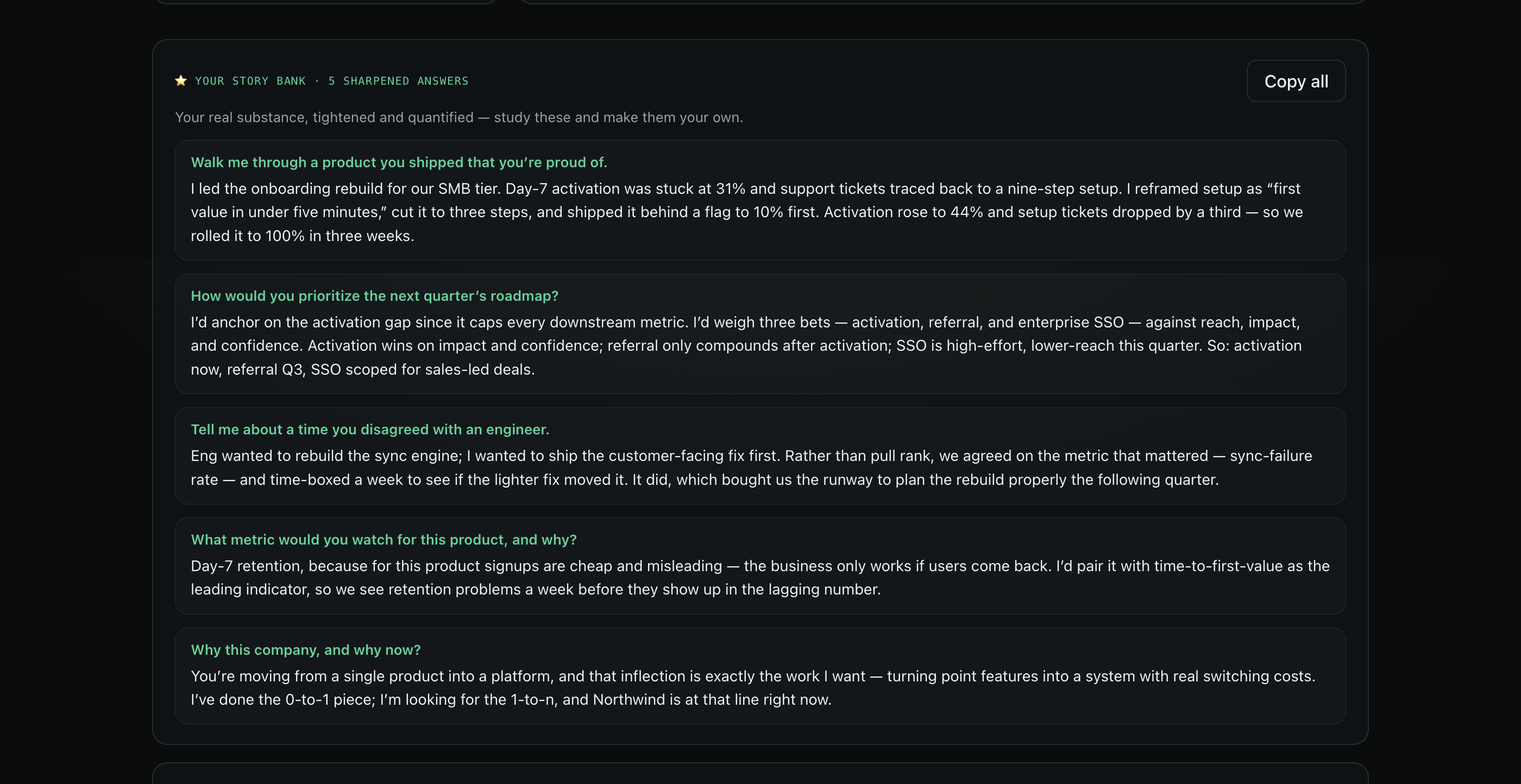
Your answers, revised.
Callback takes what you actually said and tightens it — quantified, structured, and ready to reuse. Study-ready answers in your own voice, not generic scripts.
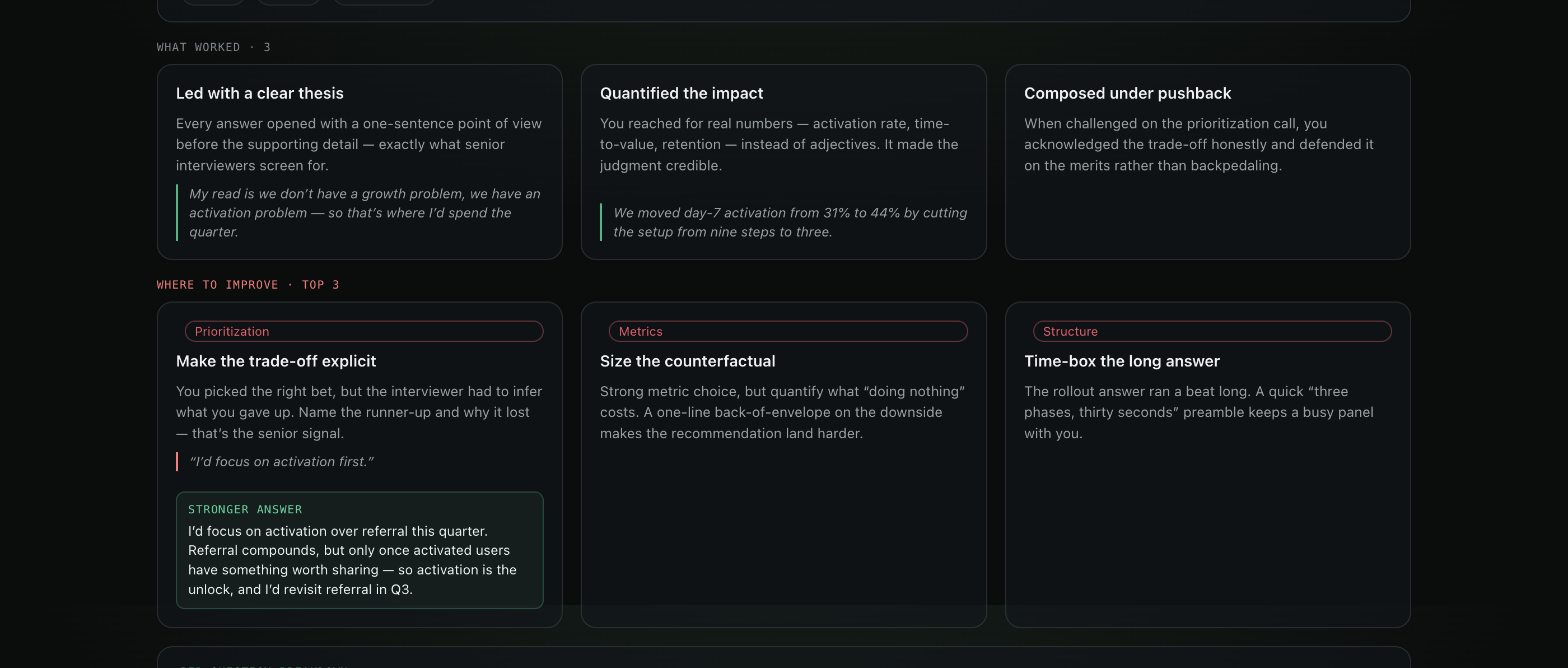
Specific strengths, specific corrections.
Rather than general advice such as 'be more confident', Callback identifies the specific moments that succeeded and those that did not, and shows a stronger version of each.
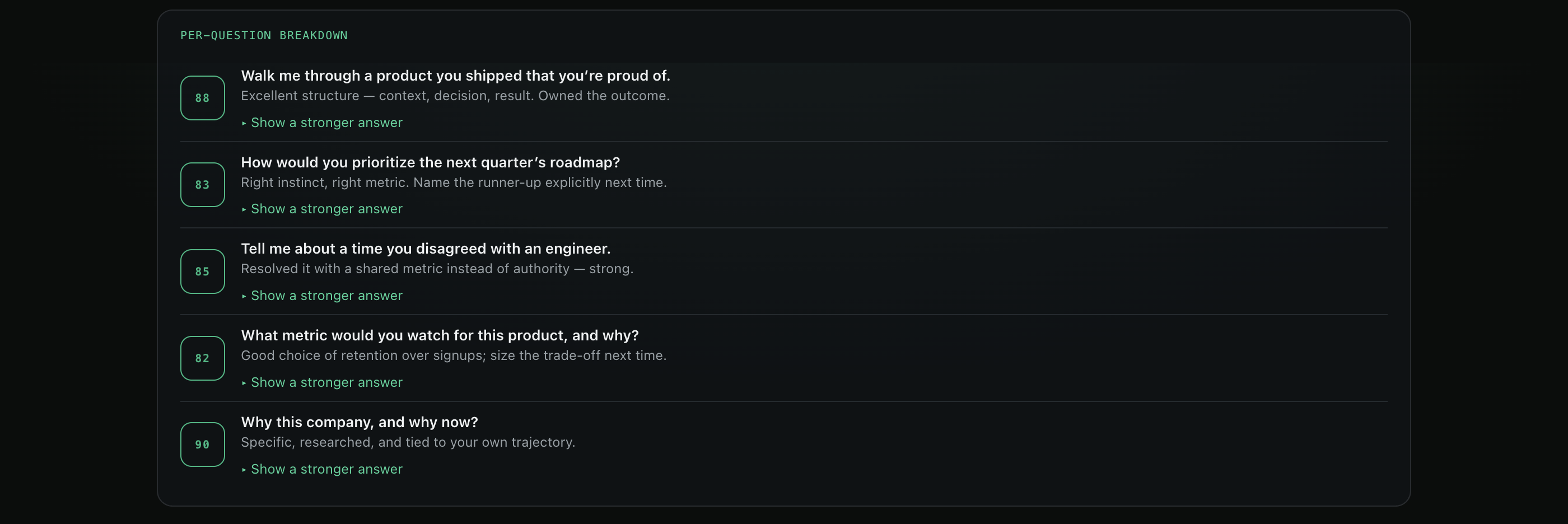
Every answer assessed individually.
Scroll back through the whole interview with a score and a note on each question — and a sharper answer you can practice next time.
A different interviewer every round.
Recruiter screen, hiring manager, senior leader — each round is a distinct person with their own voice and manner, so that you practise interpreting the interviewer as well as answering the questions.
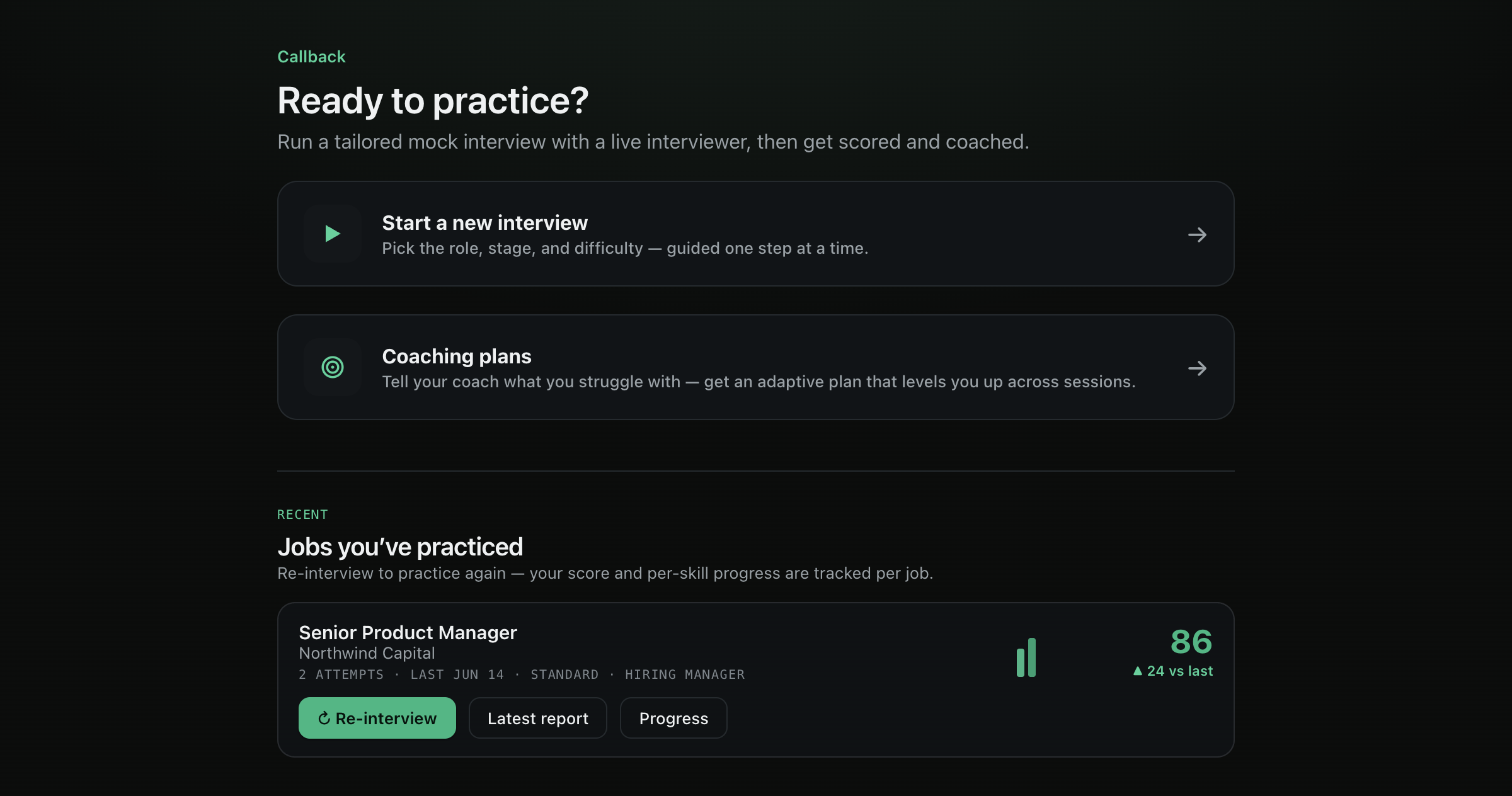
Repeat the same role until the answers are consistent.
Re-interview a job as many times as you like. Callback tracks your score and per-skill trend across attempts, so improvement is something you can actually see.
Opening Callback the first time
Callback is in beta and is not signed with an Apple Developer certificate or notarized yet, so the first time you open it your Mac shows a security warning. This is normal for beta apps distributed outside the App Store — verify the download with the checksum below, then follow these steps (about a minute, and only once). Developer-ID signing and notarization are on the way.
The message you will see
“Apple could not verify ‘Callback’ is free of malware that may harm your Mac or compromise your privacy.”
This is expected. Do not select Move to Trash — follow the steps below instead.
- 1
Open the downloaded Callback.dmg, then drag the Callback icon onto the Applications folder shown beside it.
- 2
Open your Applications folder and double-click Callback. When the warning appears, click Done — again, not “Move to Trash.”
- 3
Click the Apple menu () in the top-left corner, then System Settings → Privacy & Security. Scroll down to the Security section near the bottom.
- 4
You will see “Callback was blocked to protect your Mac.” Click Open Anyway, then confirm with your Mac password or Touch ID. Callback opens — and your Mac will not ask again.
On macOS Sonoma or earlier the procedure is shorter: right-click (or Control-click) the Callback app in Applications, choose Open, then click Open in the dialog.
If it still does not open, open the Terminal app (Applications → Utilities), paste the line below, press Return, then open Callback again. You only need to do this once.
xattr -dr com.apple.quarantine /Applications/Callback.appVerify your download
To verify that the file is genuine, run the command below in Terminal against the downloaded Callback.dmg, and confirm that the output matches the SHA-256 we publish with each release.
shasum -a 256 Callback.dmgExpected SHA-256: dbaca38c1a325fd947bb22c9ea25ac056dfbf7c80f21b32d0d8f2db2231b595d
This checksum is published with each release, so it changes whenever we ship a new build.
If any step is unclear, please email [email protected] and we will assist you.
Prepared before the interview that matters.
Conduct your first mock interview before the interview that matters.
macOS · Apple Silicon & Intel · A Vorvano product